
A tap on the shoulder
A tray icon shows each gate's state, and Windows notifies you when a gate blocks or a scan finishes.
For analysts and reporting teams
Monthly and regulatory reports are only as right as the file behind them. Datainspec tells you what changed since the version you trusted, in plain words, with the rows.
Sound familiar?
The numbers jumped, and the morning goes on finding out why.
A column vanished, a unit changed or a category appeared overnight, and nobody said so.
Nobody wants to be the one who sent out the wrong figure.
What you get
Point it at the file you trust and the new one. Every column is checked, and each finding says what changed, how much, and in which rows.
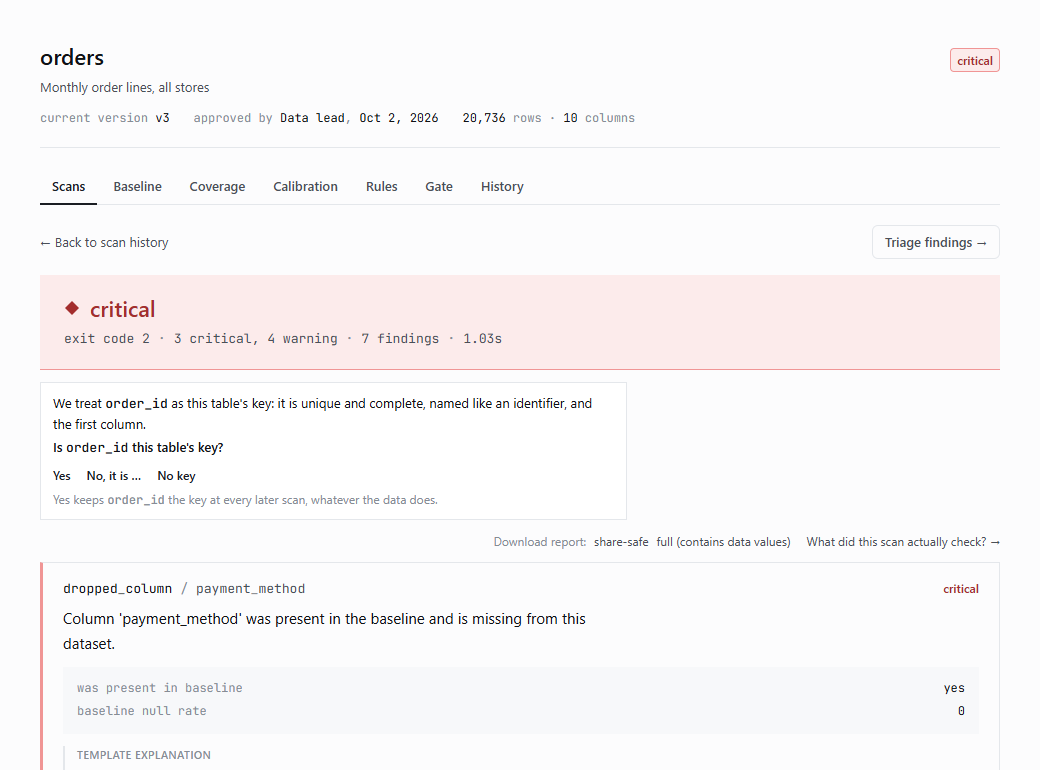
A new product line is not a problem. Mark it as expected and say why: your decision comes back, with your name, when the same finding returns next month.
See triage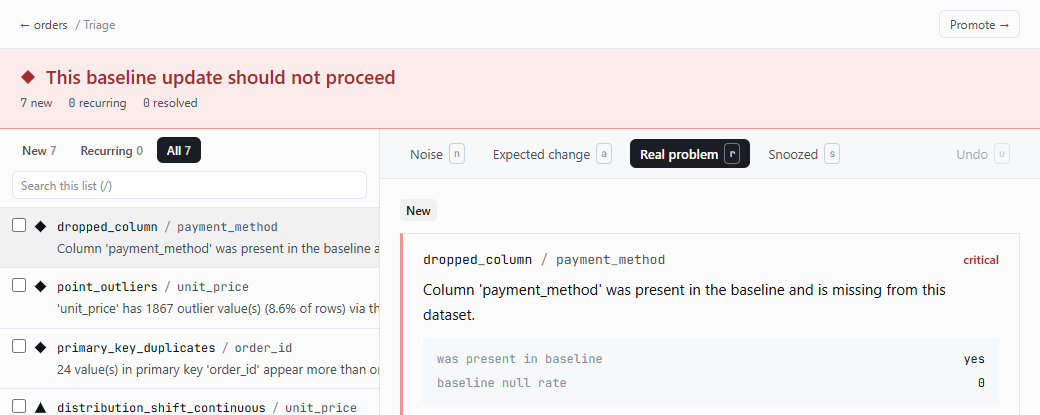
Quantity ≥ 1, a list of allowed values, a range: written in a form and checked against the approved data before you save.
See the rules screen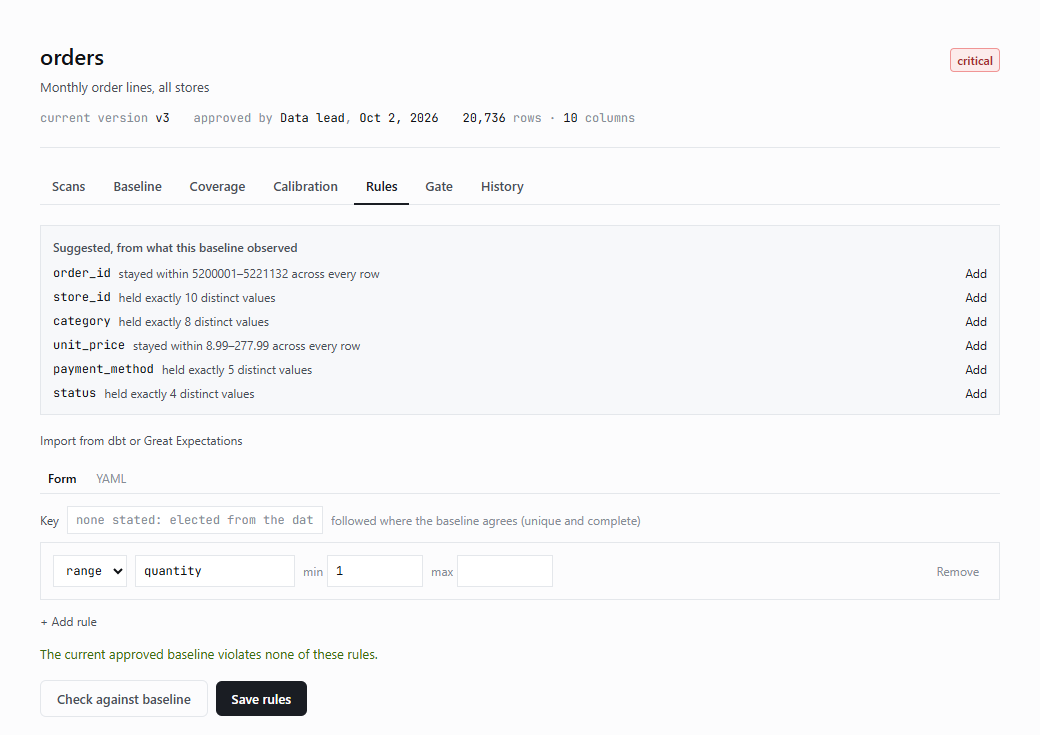
How it fits your month
The difference
Also in the app
A tray icon shows each gate's state, and Windows notifies you when a gate blocks or a scan finishes.
See how a column moves month after month, across every approved version.
Send a report outside the team with counts and statistics only, no values from the data.
Questions
No. It is a Windows app: pick the version you trust and the new delivery, and it works out every column itself.
Not directly yet. Save the sheet as CSV; it handles the separators, encodings, decimal commas and date orders Excel exports produce.
The app's tray icon shows each gate's state, and Windows notifies you when a gate blocks or a scan finishes.
Mark it as an expected change and write why. The decision is recorded with your name and shown again when the same finding comes back.
Bring one recurring report's data to a pilot; we review what it caught together.